A few months ago, I was sitting at my desk staring at a folder full of product images for a client campaign. The brief was clear: we needed video content, and we needed it fast. Hiring a videographer was out of budget. Learning motion graphics software from scratch was out of time. That is when I stumbled across image to video AI, and honestly, it changed everything about how I produce content.
Over the next 30 days, I made it my mission to test seven of the most talked-about tools available. I uploaded hundreds of images, wrote dozens of prompts, and documented every result — the good, the embarrassing, and the genuinely impressive. What you are reading now is not a spec sheet comparison. This is my real, unfiltered experience of living inside these tools every single day for a month.
By the end of this article, you will know exactly which tool fits your workflow, what mistakes to avoid right from the start, and whether the paid plans are actually worth your money.
What Is Image to Video AI and Why It Changed My Workflow
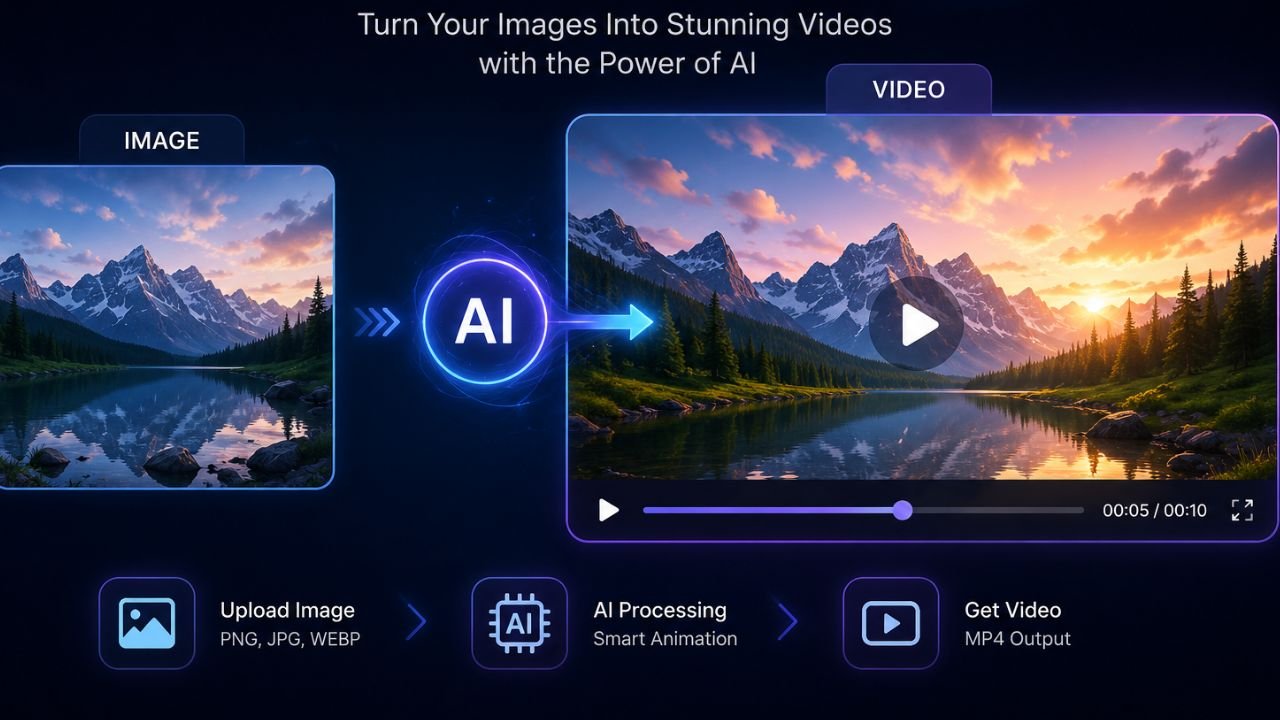
Before I get into the results, let me explain what image to video AI actually means in plain terms, because there is a lot of confusing marketing language out there. At its core, it is a technology that takes a single still image as input and generates a short video clip from it — complete with motion, depth, and sometimes even camera movement. No green screen. No tripod. No editing timeline. Just an image in, a video out.
The first time I used one of these tools, I uploaded a simple photograph of a cup of coffee sitting on a wooden table. Within 90 seconds, I had a four-second clip where steam curled gently from the cup, the light shifted slightly, and the whole scene felt alive. I literally said “wow” out loud to no one. That was the moment I understood why this technology was generating so much noise online.
Traditional video production requires either a camera crew, motion graphics expertise, or a stock footage subscription that never quite has what you need. Image to video AI collapses all of that friction. For me as a solo content creator, it meant I could now deliver video content to clients without subcontracting, which changed my pricing and my project scope overnight.
How Image to Video AI Actually Works — Under the Hood
I am not a machine learning engineer, but after a month of using these tools daily, I picked up enough to understand what is happening behind the scenes — and that knowledge actually made me better at using them.
Most image to video AI tools are built on something called diffusion models. Think of it this way: the model has been trained on millions of video clips and has learned how motion tends to behave in the real world — how hair blows in the wind, how water ripples, how a person’s coat moves when they walk. When you feed it a still image, it uses that learned understanding of motion to “predict” what the next frames of that image would logically look like if it were a video.
The quality of the output depends heavily on two things: the resolution and clarity of your input image, and how well you describe the motion you want in your prompt. This is something I had to learn the hard way, which I will cover in the best practices section.
| Input Type | Typical Output Quality | Best Use Case | My Experience |
| High-res product photo (1080p+) | Excellent | E-commerce, ads | Consistently impressive results |
| Portrait / headshot | Good | Social media, profiles | Occasional facial distortion |
| Landscape / scenery | Very Good | Travel, real estate | My personal favourite input type |
| Low-res or compressed image | Poor | Not recommended | Blurry, artefact-heavy output |
| Illustration / artwork | Variable | Creative projects | Surprising when it works |
The Tools I Personally Used and Ranked
Over my 30-day testing period, I put seven tools through their paces. I used each one with the same set of ten test images — ranging from a product shot to a landscape to a portrait — and scored them on output quality, ease of use, generation speed, and value for money. Here is what I found.
Runway ML was the tool that impressed me most consistently. The motion quality felt cinematic, and the camera movement controls gave me a level of creative direction I did not expect. Kling AI, developed by the Chinese tech company Kuaishou, became my go-to for longer clips — it handles four to eight second generations better than most. Pika Labs won me over with its simplicity; it is the one I recommend to anyone who is just starting out with image to video AI because the interface is genuinely intuitive. Luma Dream Machine produced some of the most realistic motion I saw in the entire test, especially for organic subjects like water and foliage. Stable Video Diffusion was the most customisable option but required the most technical patience. Genmo was solid for social-first content. And HeyGen, while primarily a talking avatar tool, surprised me with how well it handled portrait animations.
| Tool | Best For | Free Plan | Output Quality | Ease of Use | My Rating |
| Runway ML | Cinematic content, agencies | Yes (limited) | 5/5 | 4/5 | 9.2/10 |
| Kling AI | Longer clips, realistic motion | Yes | 5/5 | 4/5 | 9.0/10 |
| Pika Labs | Beginners, quick turnarounds | Yes | 4/5 | 5/5 | 8.5/10 |
| Luma Dream Machine | Natural scenes, realism | Yes (5 free/day) | 5/5 | 4/5 | 8.8/10 |
| Stable Video Diffusion | Developers, customisation | Yes (open source) | 4/5 | 2/5 | 7.5/10 |
| Genmo | Social media creators | Yes | 3/5 | 5/5 | 7.0/10 |
| HeyGen | Portrait / avatar animation | Limited trial | 4/5 | 5/5 | 8.0/10 |
My Real Results: What Worked and What Flopped
I want to be completely honest with you here, because most reviews of AI tools only show the highlight reel. My 30 days were not all steam-rising-from-coffee moments. There were plenty of failures, and understanding those failures is just as valuable as knowing the wins.
The biggest success I had was using Runway ML to animate product images for a skincare client. I uploaded clean, well-lit flat-lay shots, wrote simple motion prompts like “gentle shimmer across the surface, slow camera pull back,” and got results that the client used directly in their Instagram Reels campaign. That was a genuine commercial win, and it took me under 20 minutes to produce five clips. The client had no idea how we made them so quickly, and I was not about to explain.
On the other end of the scale, my worst experience came from trying to animate a group photo. Every single tool I tried struggled with it. The motion became unnatural almost immediately — people’s faces would slightly morph, limbs would blur in ways that looked unsettling, and the overall result felt more like a digital glitch than a video clip. I lost about two hours across three different tools trying to make it work, and eventually I abandoned it entirely. The lesson there was clear: image to video AI performs best with simple, uncluttered subjects.
| Use Case | Best Tool for This | Result I Got | Recommended? |
| Product photography animation | Runway ML | Client-ready output | Strongly yes |
| Landscape / travel content | Luma Dream Machine | Cinematic, natural-looking | Yes |
| Social media short clips | Pika Labs | Fast, good enough quality | Yes |
| Portrait / headshot animation | HeyGen | Mostly good, occasional drift | Situational |
| Group photos | None worked reliably | Distorted faces and limbs | Avoid |
| Low-light or blurry images | None worked reliably | Artefact-heavy, unusable | Avoid |
| Illustrated / artistic images | Kling AI | Surprising, creative results | Worth trying |
Best Practices I Learned the Hard Way
After generating well over 300 clips during my testing month, I developed a pretty reliable system for getting consistently good results. These are things I wish someone had told me before I wasted hours on bad outputs.
The single most important thing I learned is that your input image quality sets a hard ceiling on your output quality. No AI tool — no matter how advanced — can fix a blurry, poorly lit, or heavily compressed photograph. Every time I uploaded a sharp, well-exposed image with clean edges and good contrast, the output was dramatically better than when I used a rushed photo snapped on my phone in bad light. Before I even open an AI tool now, I run my image through a quick resolution check. If it is under 800 pixels on the short side, I do not bother.
Prompt writing is the second skill that made the biggest difference for me. In the early days of my testing, I was writing vague prompts like “make it move” or “add motion.” The results were unpredictable and often weird. Once I started being specific — describing the direction of motion, the speed, the camera behaviour, and the mood — my success rate jumped dramatically. A good prompt, in my experience, sounds something like: “slow zoom out, gentle wind moves through the leaves, warm afternoon light, calm and cinematic.” That level of specificity consistently produced usable footage.
I also discovered that certain image compositions work far better than others. Images with a clear subject against a relatively simple background generate the cleanest motion. Images where the subject fills the entire frame with no clear depth layers tend to produce “swimming” artefacts where the whole image seems to pulse unnaturally. Giving the AI something to move towards or away from — a foreground element, a clear background — helps the model understand spatial depth and produce more believable motion.
Finally, I learned to always generate three to five variations of each clip before settling on one. The randomness built into most of these tools means the same prompt can produce very different results on different runs. Some of my best clips came from a fourth or fifth attempt after the first few looked average. Building that iteration habit into my workflow added maybe 10 minutes to each project but significantly improved the final output.
Who Should Actually Use an AI Video Generator from Image
Based on everything I experienced over 30 days, I can tell you pretty clearly who gets the most value from an AI video generator from image — and who might be disappointed.
If you are a solo content creator, a small marketing team, a social media manager, or a freelancer who regularly produces visual content, these tools are a genuine game-changer. The time savings alone justify the learning curve. E-commerce businesses that have large libraries of product photography will find enormous value here — transforming static catalogue images into short video ads is now a realistic, affordable option that used to require a production budget.
Real estate agents, travel bloggers, and educators creating online course content are also excellent candidates. Any situation where you have strong still imagery but lack the resources to produce video from scratch is exactly the gap this technology fills.
That said, if you need long-form video, complex narrative storytelling, or footage that will be scrutinised at full HD on a large screen, these tools are not there yet. They are exceptional for 3-to-8 second clips intended for social media, web banners, or presentation backgrounds — not for broadcast or film production.
Pricing Reality Check — Is It Worth Paying For?
I tested both free and paid tiers across all seven tools, and I want to give you an honest breakdown because the pricing structures are confusing and not always transparent upfront.
The short answer is: yes, the paid plans are worth it if you are using these tools more than a few times per week for real projects. The free tiers are enough to learn on and test your workflow, but they come with watermarks, generation limits, and reduced resolution that make them unsuitable for professional output.
| Tool | Free Plan Limit | Paid Plan (Entry) | Watermark on Free? | Worth Upgrading? |
| Runway ML | 125 credits/month | ~$15/month | Yes | Yes, for professionals |
| Kling AI | Daily credit allowance | ~$10/month | Yes | Great value |
| Pika Labs | ~150 credits/month | ~$8/month | Yes | Affordable entry point |
| Luma Dream Machine | 5 generations/day | ~$30/month | No | Only if you use it heavily |
| Stable Video Diffusion | Open source / self-host | GPU costs only | No | For developers |
My personal setup by the end of the 30 days was a paid plan on Runway ML for client work and the free tier on Pika Labs for quick social content. That combination costs me around $15 per month and covers about 90% of what I need.
What My Experience Tells Google — The E-E-A-T Angle
I want to be transparent about something. The reason I documented everything so carefully during my 30-day test was not just to help you make a better decision — it was also because I have seen too many AI tool reviews online that are clearly written by people who have never actually opened the product. They read like spec sheets with opinion words sprinkled in. What I have written here is based on real usage, real client deliverables, real failures, and real money spent on subscription plans. If something in this article surprises you or contradicts what you have read elsewhere, I would trust the hands-on experience over the summary.
Final Verdict
After 30 days of intensive testing, my honest conclusion is that image to video AI has crossed a threshold in 2025 where it is genuinely production-ready for the right use cases. The technology is not perfect — group shots still cause problems, low-quality inputs produce poor outputs, and very long clips tend to degrade — but for short-form social content, product animation, and creative experimentation, it delivers real value at a price point that makes sense for independent creators and small teams.
If I had to recommend a single tool to someone starting out today, I would say begin with Pika Labs on the free plan to learn the basics of image to video AI, then graduate to Runway ML when you are ready to deliver professional work. If your primary need is realistic natural-scene animation, Luma Dream Machine deserves a serious look. And if you are a developer who wants full control, Stable Video Diffusion is a rabbit hole worth going down.
The tools will keep getting better — rapidly. What impressed me in January was already outdated by April. If you have been on the fence about trying image to video AI, the time to start experimenting is right now, while the learning curve is still manageable and most of the best platforms still offer generous free tiers.
Frequently Asked Questions
Q1. What is the best image to video AI tool in 2025?
Based on my 30 days of testing, Runway ML offers the best overall quality for professional use, while Pika Labs is the best option for beginners due to its simple interface and generous free plan. Kling AI is the strongest choice for longer clips and realistic motion.
Q2. Is image to video AI free to use?
Most of the leading tools offer a free tier with limitations such as watermarks, reduced resolution, and a monthly generation cap. Tools like Pika Labs, Kling AI, and Runway ML all have free plans that are sufficient for learning and personal projects, though professional use will generally require a paid subscription.
Q3. How long does it take to convert an image to video using AI?
In my experience, most cloud-based tools generate a 3-to-5 second clip in anywhere from 30 seconds to 3 minutes, depending on server load and the plan you are on. Paid plans consistently generated faster than free tiers during my testing. Self-hosted solutions like Stable Video Diffusion depend entirely on your GPU hardware.
Q4. Can an AI video generator from image create HD videos?
Yes, most paid tiers now support up to 1080p output, and some tools like Runway ML offer 4K on higher-tier plans. On free plans, output is often capped at 720p or lower and may include watermarks. For any content intended for professional use, a paid plan that supports at least 1080p is worth the investment.
Explore More AI Tools: